OCPS parents do not need a pairing code for Canvas. The district enrolls parents as observers and connects them through their ClassLink LaunchPad account. Here is how to open the Canvas Parent app, where missing work shows up, and why Skyward still has the final grade.
If your child's teachers post assignments in Canvas, you can see those assignments, due dates and scores yourself. Orange County Public Schools does not ask most parents to pair with a code. The district's Canvas Parent Resources course, rechecked November 14, 2026, says, "Parents & guardians at OCPS have been enrolled as 'observers' of their students in Canvas." As an observer, the page says, "you have view access to any published Canvas courses in which your student is enrolled."
The key that unlocks it is your ClassLink LaunchPad parent account. With Friday, November 20, 2026, the last school day before Thanksgiving Break, this week is a good time to check for missing work while teachers can still help.
What do I need before I open Canvas?
A ClassLink LaunchPad parent account. The OCPS Skyward parent portal page, rechecked November 14, 2026, calls the portal "the link to Skyward Family Access, Online Registration via Focus, and much more." Its section headed Take me to my ClassLink LaunchPad Account names Canvas directly: "Within ClassLink LaunchPad parents/guardians have access to resources like Skyward Family Access, Online Registration through Focus, Canvas and more." The LaunchPad address is parents.classlink.com/ocps.
The same page says creating a LaunchPad account "requires your student to be registered in an OCPS school," and that an active email address or cell phone number must be attached to your parent or guardian record in Skyward. If you cannot create the account or cannot see your child, the page says to start with your school's front office, which can verify, add or update your email address or phone number.
Our Skyward and LaunchPad login guide covers account setup and common login errors.
How do I open Canvas on a computer?
Sign in at parents.classlink.com/ocps and click the Canvas tile. Canvas is one of the LaunchPad resources the Skyward page names in its Take me to my ClassLink LaunchPad Account section.
Once inside, the OCPS Canvas Parent course shows these tools in the left side menu:
Courses: each published Canvas course your child is enrolled in.
Calendar: the course's Canvas Calendar guide says it "is a great way to view everything a linked student has to do for all their courses in one place," by day, week, month or agenda list.
Inbox: where you can message your child's Canvas teacher.
How do I open the Canvas Parent app on my phone?
OCPS posts step by step directions for both iPhone and Android on its Parent App page. The directions say that before you try the app, "you will need to have a Classlink parent account." Then:
Download the Canvas Parent app from the App Store or Google Play.
Open the app and tap "Find my school."
When asked for your school's name, enter OCPS and select Orange County Public Schools.
Tap the "Parent Login" button, then the green "Parent Login" button at the top of the screen.
Log in to your ClassLink parent portal with the email or phone number and password you used to create your account.
The directions say you should then be able to see your student in the app. The directions are undated, and the Parent App page in the district's Canvas course was last edited in November 2019, so screens may look a little different today.
When would I need a pairing code?
Usually you will not. Pairing codes are how Canvas links an observer to a student in schools that let parents create their own observer accounts. Instructure, the company that makes Canvas, says in its Pairing Codes FAQ that codes are six characters, are case sensitive and expire after seven days or after they are used once. It says only students, or staff with permission, can create a code, and that pairing codes work only if the school allows self registration; otherwise, families should contact the institution.
Because OCPS says it has already enrolled parents as observers and routes them through LaunchPad, start with LaunchPad. If your child does not appear after you log in, call the school front office before you hunt for a code.
Some school websites still post older pairing code steps. Lake Nona High's Canvas page, checked November 14, 2026, still tells students to click "pair with observer" and parents to register at canvas.ocps.net with a "student pairing code." Start with LaunchPad anyway.
Where do I see missing work?
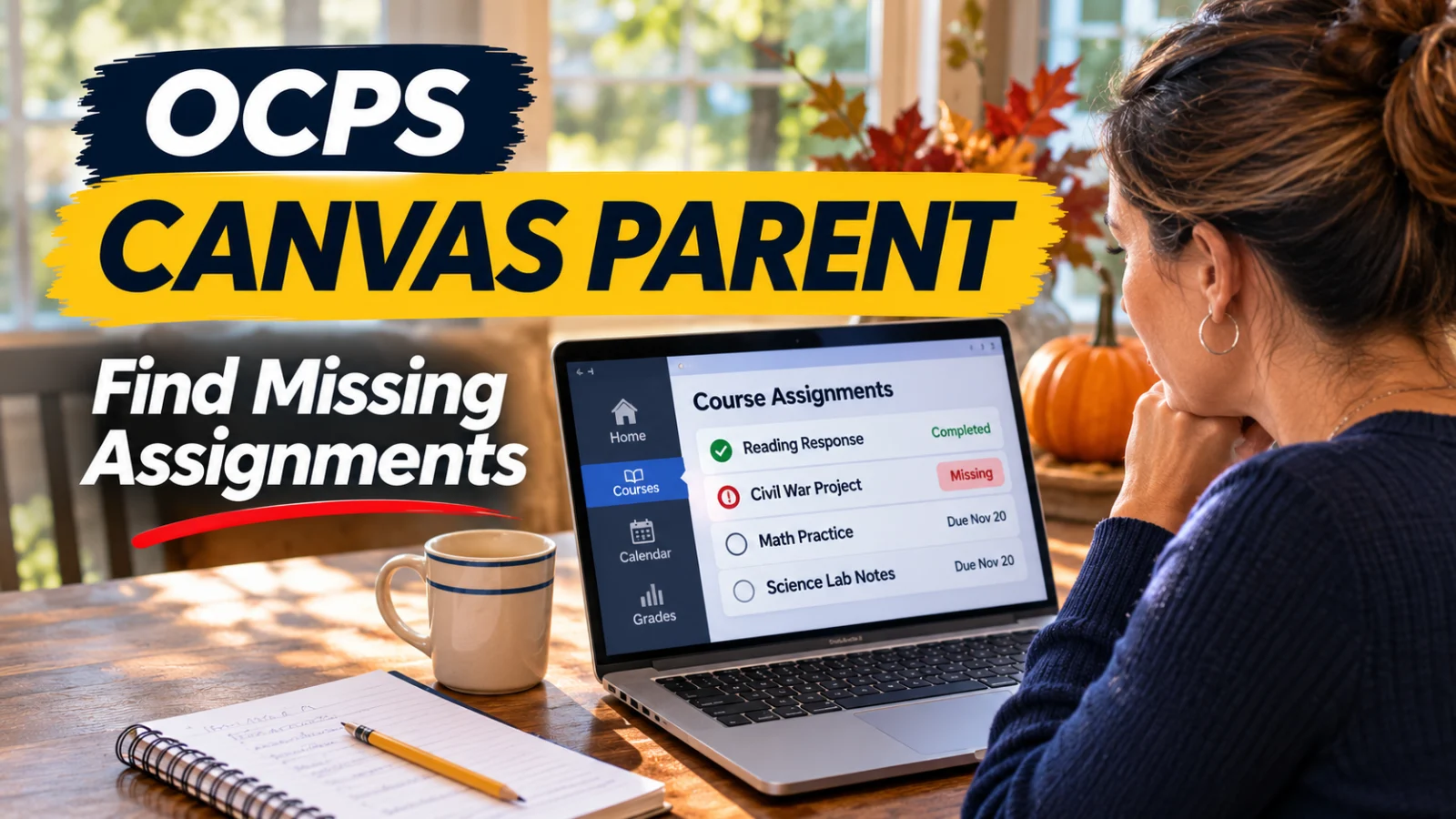
Open the course, then open Grades. OCPS's guide to Course Progress and Grades says the Grades page "displays your student's current course grade as well as all current grades for course assignments," along with scoring details, comments and rubrics. If the teacher uses grading periods, you can filter by grading period.
Instructure's guide to viewing the Grades page as an observer says you can see each assignment's due date, submission date, status and score, and that the Status column appears only when at least one assignment has a status. An assignment with a due date that has passed and no submission date is the one to ask about.
Two settings on that page can make a grade look better or worse than it is.
Current grade. The OCPS guide says the current grade counts only graded assignments, using the "Calculate based only on graded assignments" checkbox.
Total grade. The total grade counts all assignments, graded and ungraded. Uncheck the box to see how ungraded or missing work could pull the grade down.
The OCPS guide also notes that a teacher may restrict observers from seeing the total grade or some scoring details. If you see a blank where a grade should be, that may be the teacher's setting, not a problem with your account.
In the phone app, Instructure's guide to viewing a student's courses says the course view lists assignments with due dates, submission status and scores.
Is the Canvas grade my child's official grade?
No. The OCPS course's Assignments and Grades page says, "The gradebook of record for OCPS is Skyward." It adds that "Some grades may appear in Skyward only, as they can be entered independently of Canvas." The district's Family Engagement and Digital Outreach page describes Canvas Parent as providing "access to students Canvas course assignments, calendar, and grades on work completed in Canvas."
So use Canvas to see what is due and what is missing, and use Skyward to see the grade that will go on the report card. Our report card dates guide explains when grades become final. The second marking period ends Friday, December 18, 2026, according to the 2026 to 2027 OCPS school calendar.
Can I get emails when something is posted?
Yes, on the web version. OCPS's guide to observer notifications says to click Account, then Notifications. Each notification can be set to send right away, as a daily summary, as a weekly summary, or not at all. The guide says these settings apply to all courses you observe and cannot be set course by course. There is also a checkbox to show your child's name in notifications, which the guide says currently appears only in grade update notifications.
The phone app has its own grade alerts. Instructure documents them, and our Skyward alerts guide covers both systems.
How do I message a teacher in Canvas?
OCPS's Canvas Inbox guide says to click Inbox, click the pencil and paper icon, choose the course, then choose the teacher by typing a name or selecting from the Teachers list. You can attach a file before you send. On a phone, the guide says the Inbox is under the menu icon.
A short, specific note works best before a break: name the assignment, ask whether it can still be turned in, and ask for the last day the teacher will accept it.
Where can I get more help?
The OCPS course's Additional Parent Resources page, updated May 21, 2026, links a Canvas Parent access presentation in English at tinyurl.com/OCPSCanvasParent and in Spanish at tinyurl.com/OCPSCanvasPadres, plus Instructure's observer guides. For account problems, the district's Skyward page says to contact your school.
Tonight, log in through LaunchPad, open each course's Grades page, uncheck "Calculate based only on graded assignments," and write down anything marked missing so your child can ask the teacher about it before Friday, November 20, 2026.