
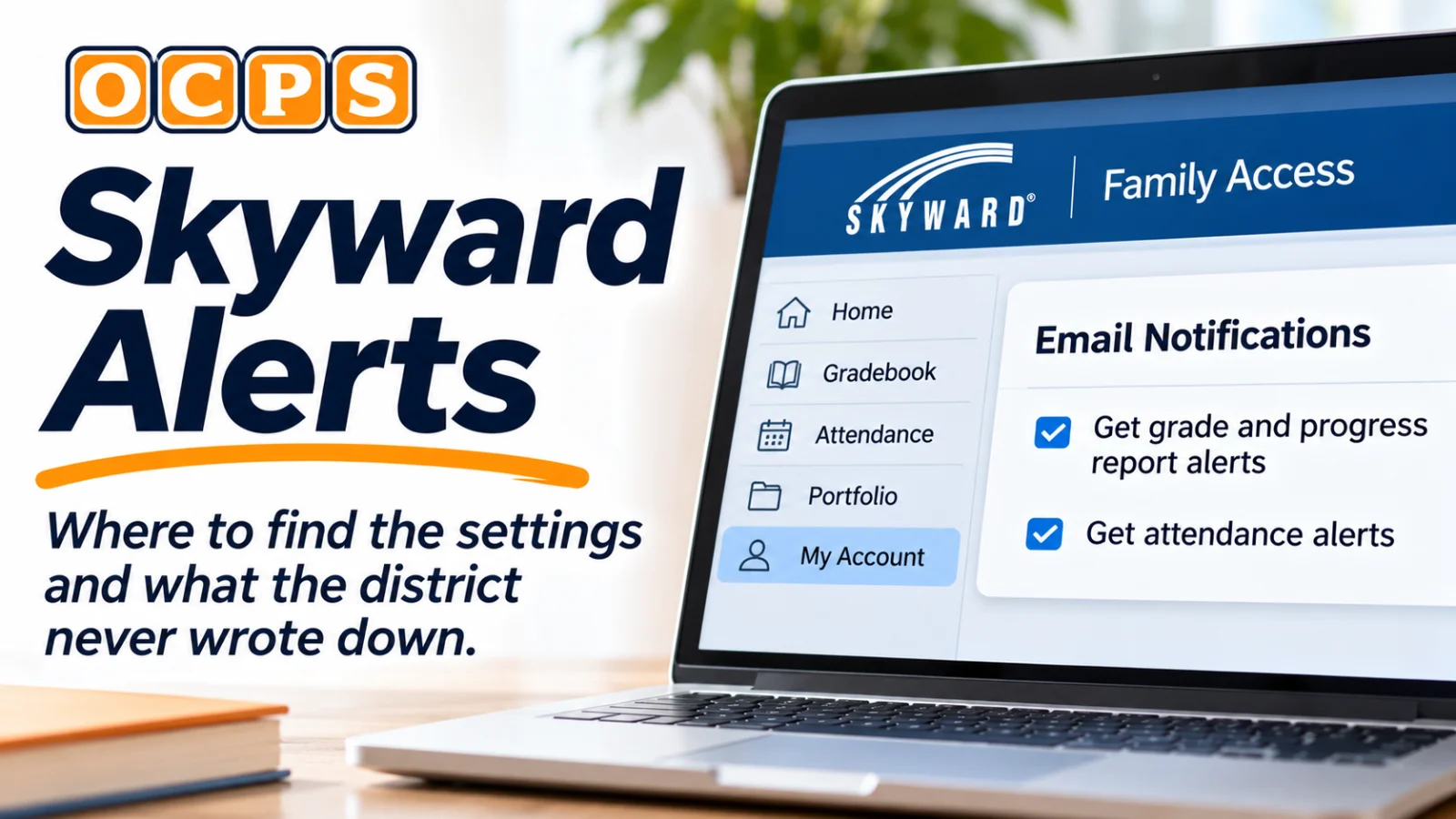
The OCPS family guide lists one job for the middle of the school year: set up Skyward alerts for grades, attendance, progress reports and report cards. None of the district's own Skyward guides show how. Here is what the software maker documents, plus a backup that works through Canvas.
Orange County Public Schools tells families to "Set up alerts in Skyward app on OCPS Parent Portal to receive notifications on attendance, progress reports, report cards and grades." It is the first step under "Monitoring Growth (Sept-Mar.)" in the district's Current Families Guide, checked November 4, 2026.
The district does not explain how. Its Skyward Family Access FAQ, posted in August 2026, and its Skyward Family Access Guide, revised August 2, 2024, cover logging in, tabs and report cards. Neither one has a section on alerts or notification settings.
So this guide works from what Skyward itself publishes, and is clear about what a parent will need to confirm on screen.
Where are the alert settings in Skyward Family Access?
Under My Account, according to Skyward. The company's Family Access messaging video page, checked November 4, 2026, says that message settings "can be found under My Account," and tells parents to "Scroll down to Email Notifications."
From there, the Skyward transcript says, you can choose whether notifications go "via email, on your Family Access Message Center wall, or both." It adds that you "can select whether you'd like to receive email alerts when your children score above or below a chosen percentage and choose the frequency at which you'll receive progress report emails."
Here is the likely path in Orange County. Steps 1 to 3 come from OCPS guides. Steps 4 and 5 come from Skyward's general help page, not an OCPS screen.
Log in to ClassLink LaunchPad at parents.classlink.com/ocps.
Click the Skyward tile to open Family Access.
Click My Account, near your name at the top of the Home screen.
Scroll to Email Notifications, if your screen shows it.
Set a low percentage, pick how often you want progress report emails, and save.
Step 4 has a caveat. The OCPS Family Access Guide describes My Account as the place that "Provides the contact information of the family. Changes must be processed at the student's school." It does not mention notification options. OCPS has not published a screenshot of its version, so what OCPS families see there is unconfirmed.
If My Account shows only your contact details, ask your school whether OCPS offers email alerts, and use the next section as your backup.
Can I get grade alerts on my phone?
Possibly, through either of two apps, and neither has OCPS instructions behind it.
Skyward's push notifications page says that in its mobile app you tap the menu, select the person icon, then tap Push Notifications under User Preferences. There, it says, families can choose alerts "about grades, missing assignments, new messages, and newly registered devices." OCPS parents sign in through ClassLink rather than a Skyward password, and the district has not said whether the Skyward mobile app works with that login.
Canvas Parent is the better documented option for middle and high school families whose teachers use Canvas. The OCPS Family Engagement and Digital Outreach page says Canvas Parent "provides access to students Canvas course assignments, calendar, and grades on work completed in Canvas." Instructure, the company behind Canvas, says in its Canvas Parent alerts guide for iPhone that parents can turn on toggle alerts and also set alerts for when an assignment is "above or below a certain percentage."
Canvas alerts cover only work in Canvas. The official grade of record is the one in Skyward.
What should I set the grade alert to?
Pick a number that gives you time to act. In OCPS, a C runs from 70% to 79% and a D from 60% to 69% in grades 2 through 12, according to the district's 2026 to 2027 Student Progression Plan handbook. OCPS has not published whether its version of Family Access includes percentage alerts. If your account offers them, a low threshold of 70 can flag a score below the C range while there is still room to recover.
Kindergarten and first grade report cards use S, W, N and U instead of letters, but the handbook ties each one to a percentage. W, for Working on Skill, covers 70% to 79%, and N, for Needs Improvement, covers 60% to 69%. Those percentage ranges do not establish whether Skyward sends percentage alerts for kindergarten or first grade; ask the teacher how to monitor progress.
For high school students, grade point average carries weight beyond the report card. The handbook says unweighted GPA uses A as 4, B as 3, C as 2, D as 1 and F as 0, and that the unweighted scale is used for the minimum GPA for graduation and for extracurricular eligibility.
Set the frequency to weekly at first. Daily emails during a heavy grading week can bury the one that matters.
How do I see a progress report without an alert?
Open the Portfolio tab, the place the OCPS Skyward FAQ names for progress reports and report cards. An OCPS Parent Tech Tips video on progress reports and report cards, posted in 2020 and still linked from the family guide, says the Portfolio page lists progress reports and report cards for the whole year, and that "you'll also see the date and time that they were posted."
That posted date is the most reliable progress report notice OCPS families have right now. The district has not published districtwide progress report dates for 2026 to 2027. Our guide to OCPS report card dates covers the marking period calendar. The second marking period ends Friday, December 18, 2026.
What should I check every week?
OCPS asks families to "Check grades weekly and identify missing assignments," the second step in the Monitoring Growth list. Here is a short routine that does that.
Open the Gradebook tab first. The Family Access Guide says missing assignments "will appear at the top of the Gradebook area in the Missing Assignments area once marked by the teacher." The missing assignment list depends on the teacher marking the work missing. The guide does not establish whether OCPS sends a separate missing assignment alert.
Then check the Attendance tab. The guide says it shows absences and tardies for the current date and prior dates, by period.
Last, look at the Wall on the Home screen. The guide says it "Displays District Announcements, Online Forms, Unread Messages, and other alert information."
The whole check takes about five minutes once you know where to click.
What if alerts never show up?
Start with your email address. Skyward can only send alerts to the email on your parent record, and the OCPS guide says contact changes "must be processed at the student's school." If you changed email providers, ask the front office or registrar to update it.
Then check your spam folder for anything from Skyward, and test the setting by choosing a high threshold, such as 95, for one week. If nothing arrives after a graded week, the alert either is not active or is not reaching your address.
If you still cannot find or save the settings, ask the school in writing which alerts OCPS has turned on in Family Access. The OCPS Skyward page points families to their school's front office first and to the blue "Contact Us!" chat button on ocps.net as the backup. The district's main number is 407 317 3200.
Alerts do not replace a teacher conversation. The family guide's Monitoring Growth list ends with "Schedule parent-teacher conferences, as needed," and the week before Thanksgiving break, which runs November 23 to 27, 2026, is a good time to ask for one.